When sending out from legacy devices or scan to email from printers that do not support MFA, you are still able to protect the account that is sending emails with MFA. To do this you can create an App Password to use in replace of your original password, as the App Password does not require MFA.
The primary purpose of App Passwords is to still enforce MFA on the account, but also to create a single use application password where MFA is not supported.
To create an App Password there are a few condition that need to be met:
- Security Defaults needs to be disabled
- MFA needs to be enforced on the account
- App passwords don’t work for accounts that are required to use modern authentication
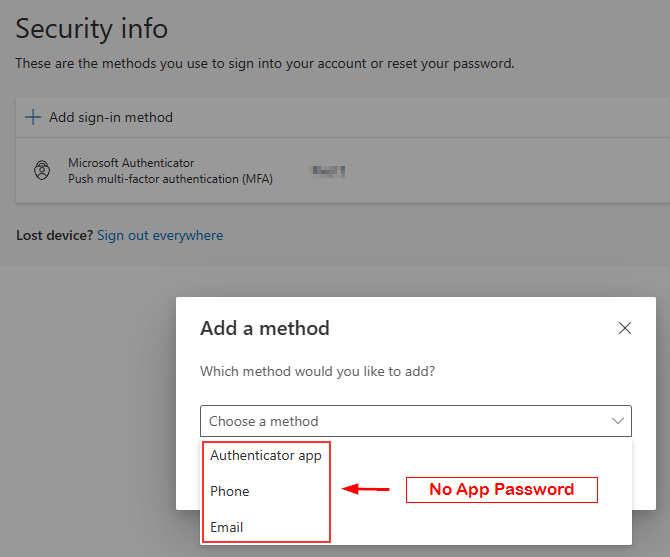
As you can see App Passwords is not an option
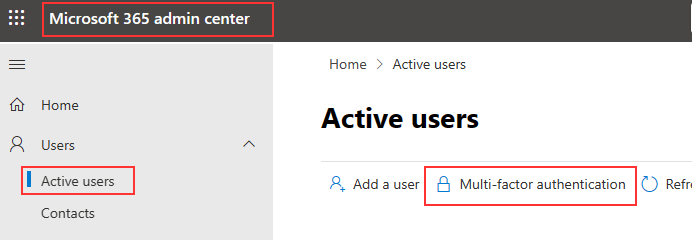
From the Active users section select Multi-Factor Authentication
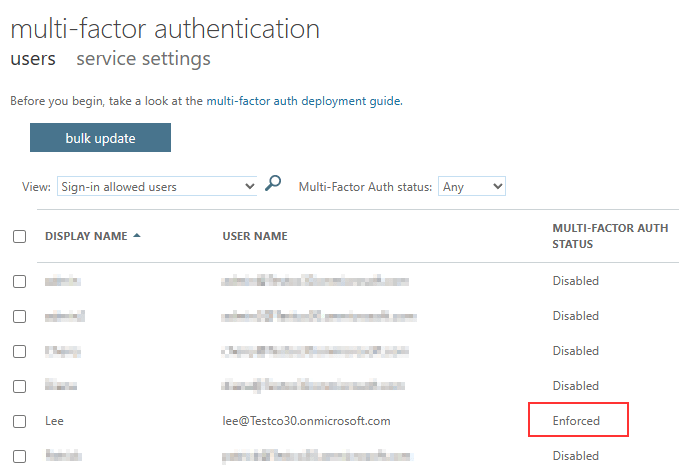
Ensure the that user is enforced for MFA via per user or Conditional Access
Ensure to allow users to use App Passwords
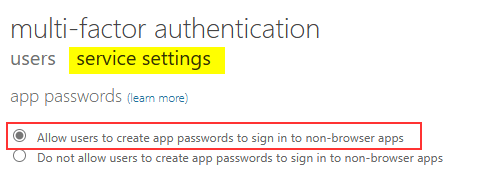
Exclude the user from any Conditional Access Policy that blocks legacy sign-ins

After following these steps you should see that App Passwords is now an option
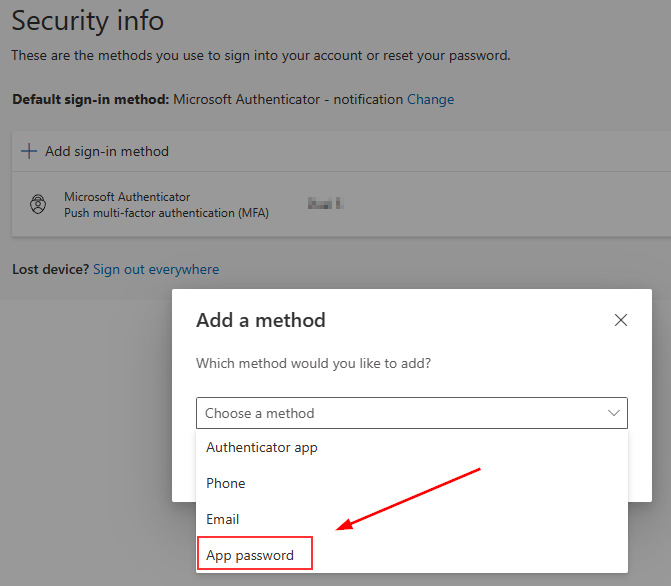
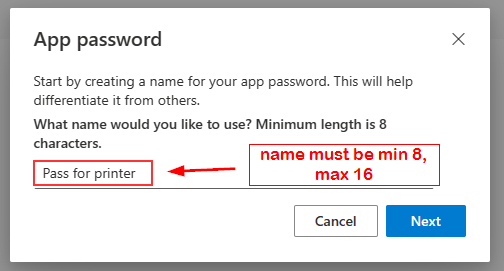
After selecting App Password, you will need to name it
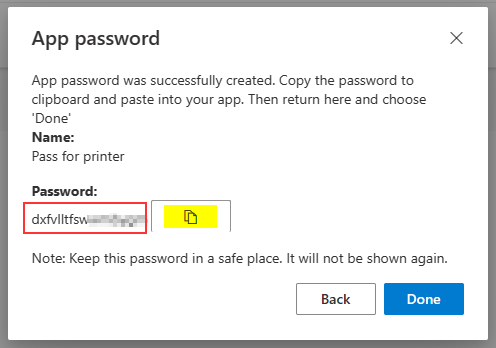
The password will now be displayed. You will need to record the password as you will not be able to see the password again
 TechBlog
Leave a comment