
There are 3 primary methods for setting up MFA:
- Automated MFA via Setup Conditional Access (works with or without Azure AD P2 License)
- Manual Conditional Access (requres Azure AD P2 License)
- Manually Per User (Legacy)
Automated MFA via Setup Conditional Access
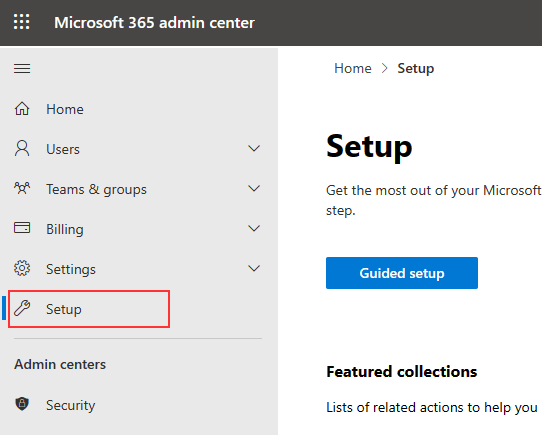
In the Microsoft Admin section, you will find ‘Setup’. This will provide easy to follow guides for common procedures within Microsft 365.
One of these guides is for Multi Factor Authentication (MFA). This guide will setup MFA using Microsoft’s built-in MFA Conditional Access Policy.
Once Microsoft’s built-in MFA Conditional Access Policy is setup, it cannot be altered with out a license (but can be deleted). To change the built-in policy or setup MFA from scratch via Conditional Access, you will need a Azure AD P1 or P2 license.
From the Admin Center select Setup:
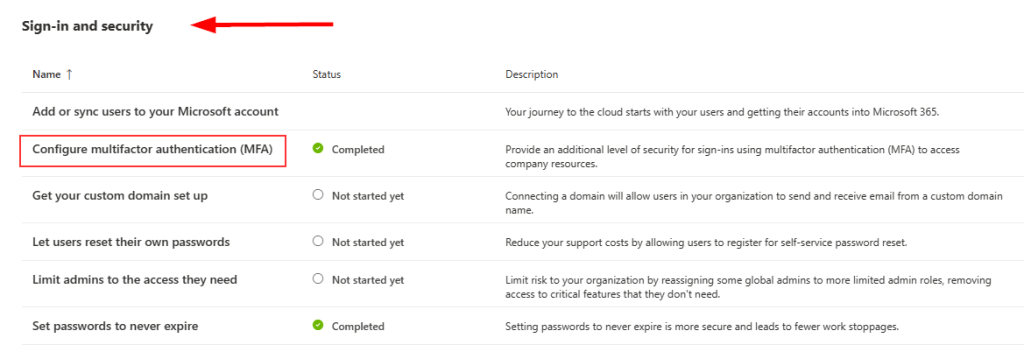
After selecting Setup, you can scrol down to Sign-in and Security and MFA:
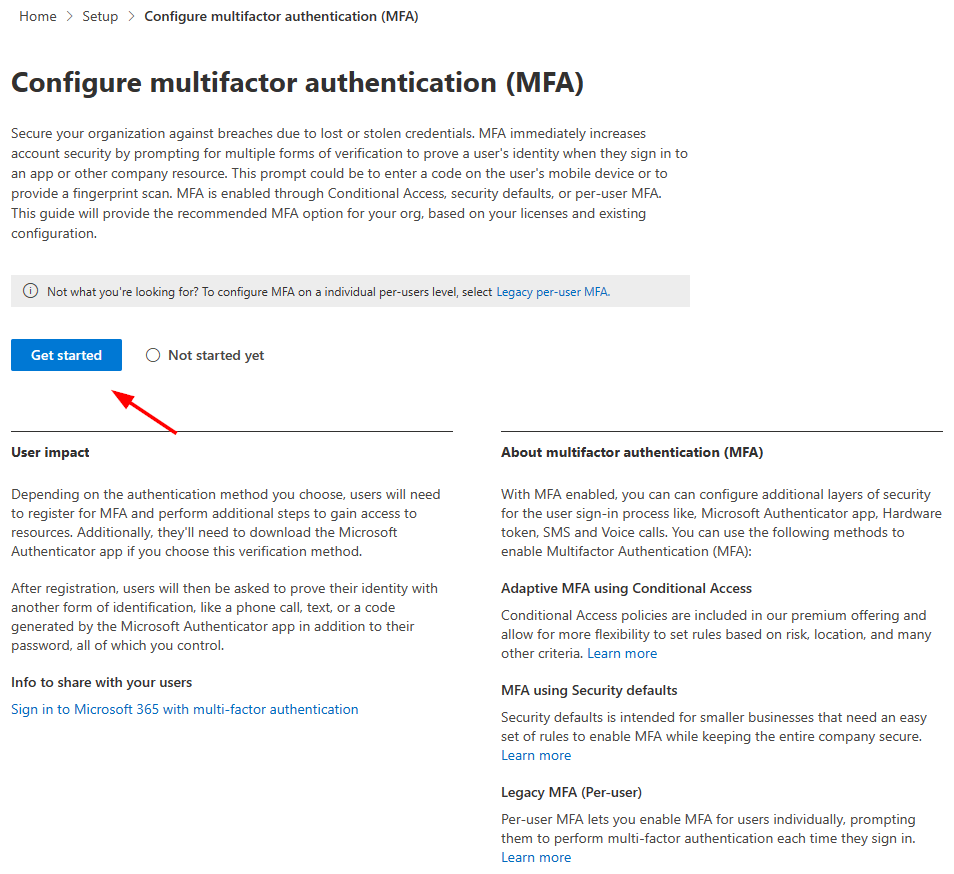
Selecting the Get Started button, will begin the process:
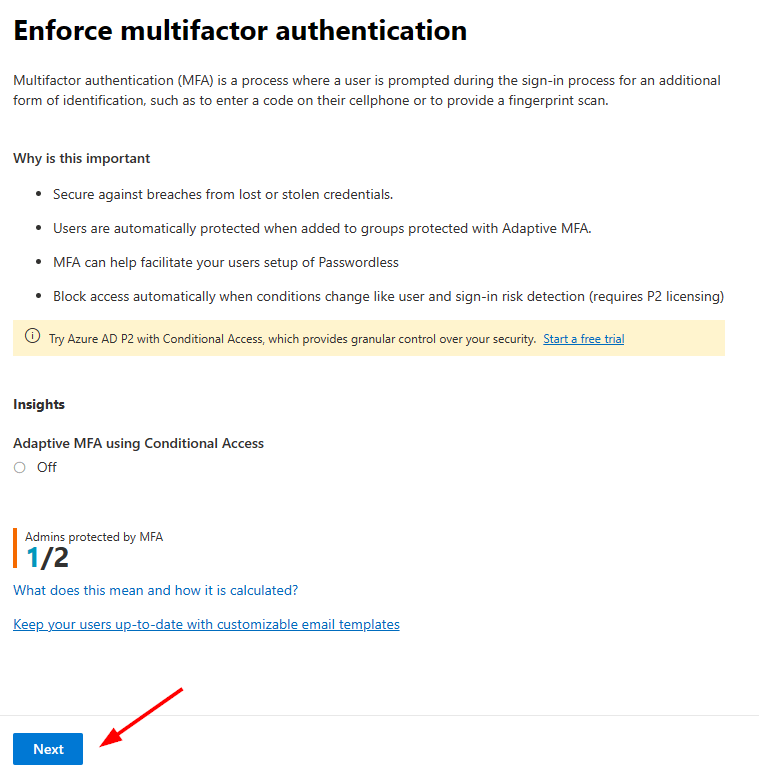
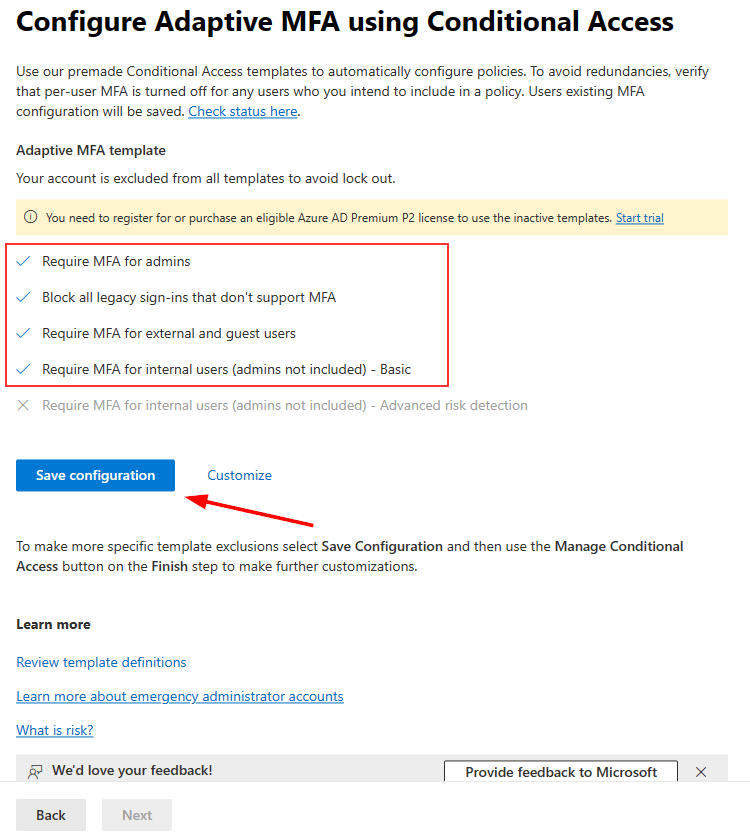
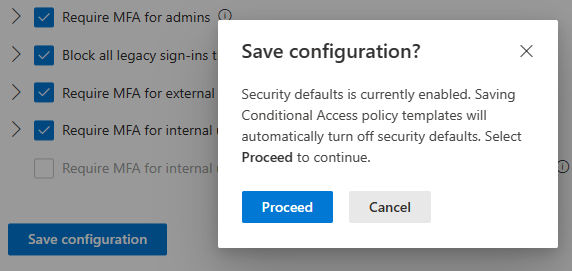
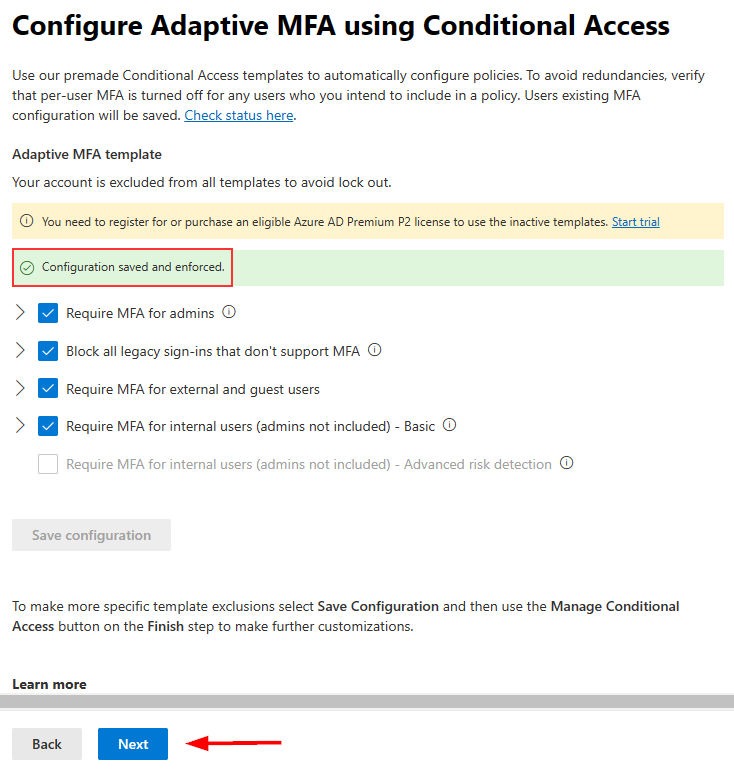
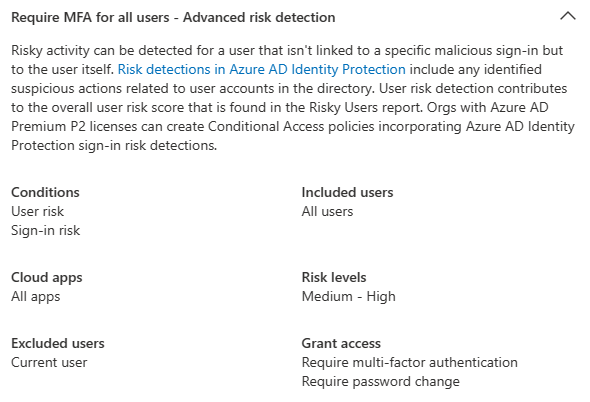
Side note: With the P2 License, it seems that the Require MFA for internal users – Basic is replaced with Advanced risk detection. The Advanced risk protection only applies MFA if a user is at Risk.
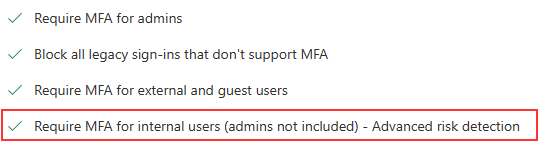
What Require MFA for all users – Advanced risk detection means
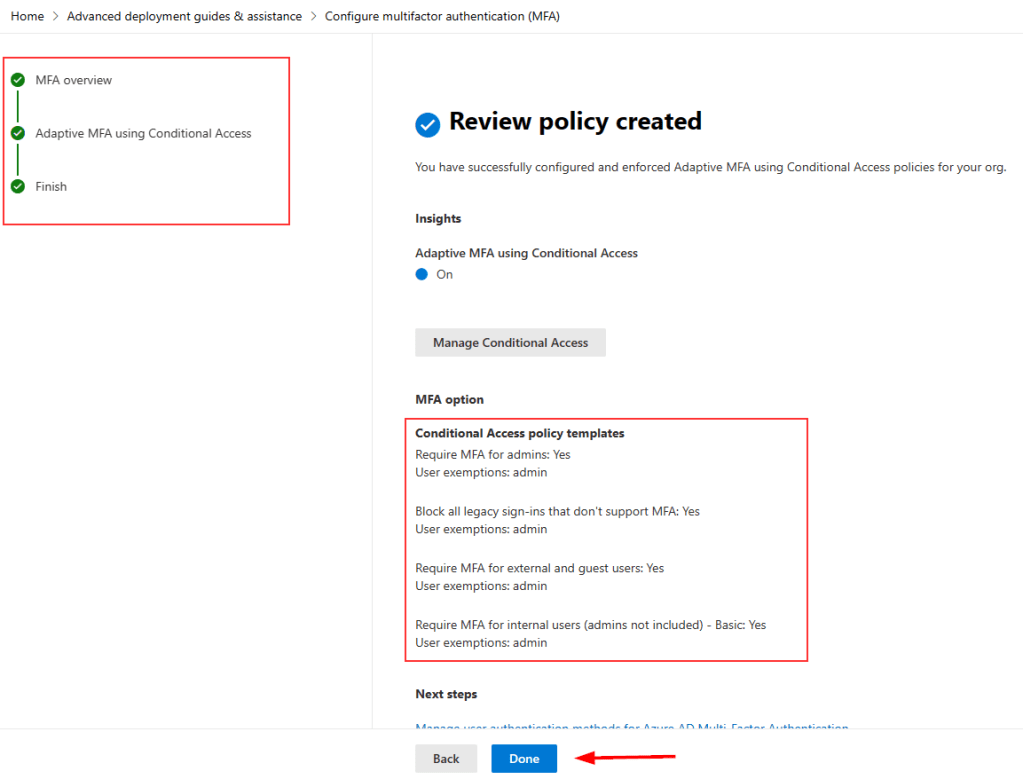
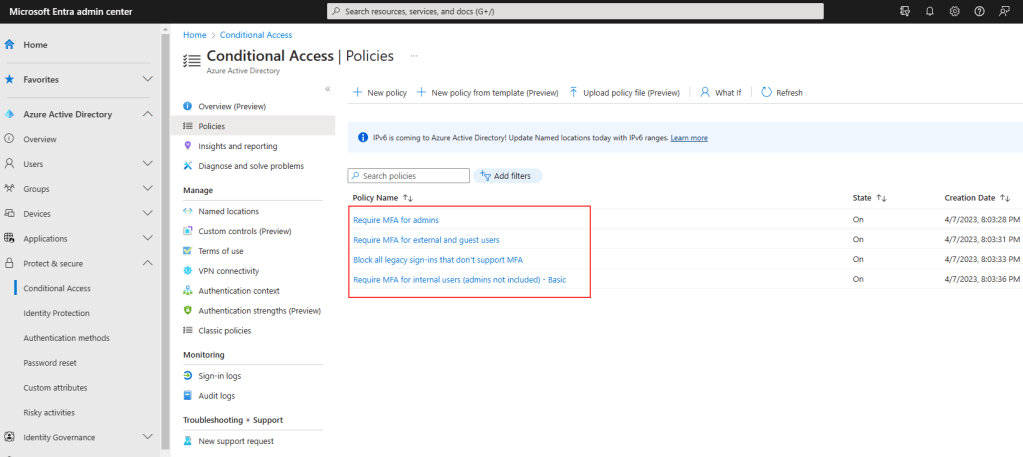
Once the policy is created, you will see in the Conditional Access that the Policies exist.
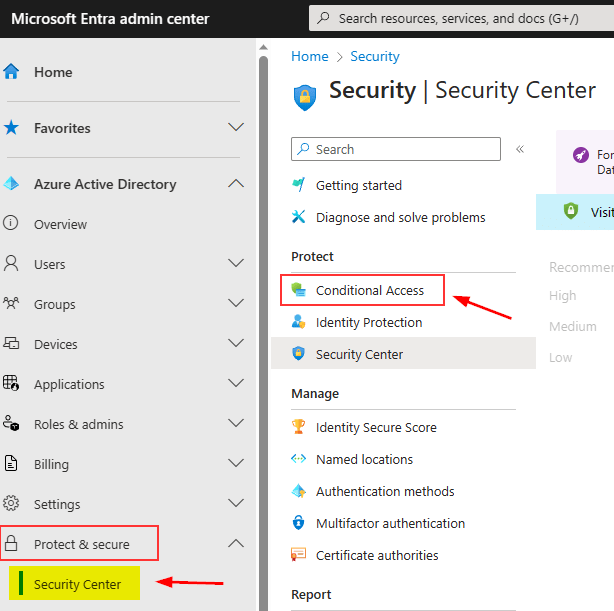
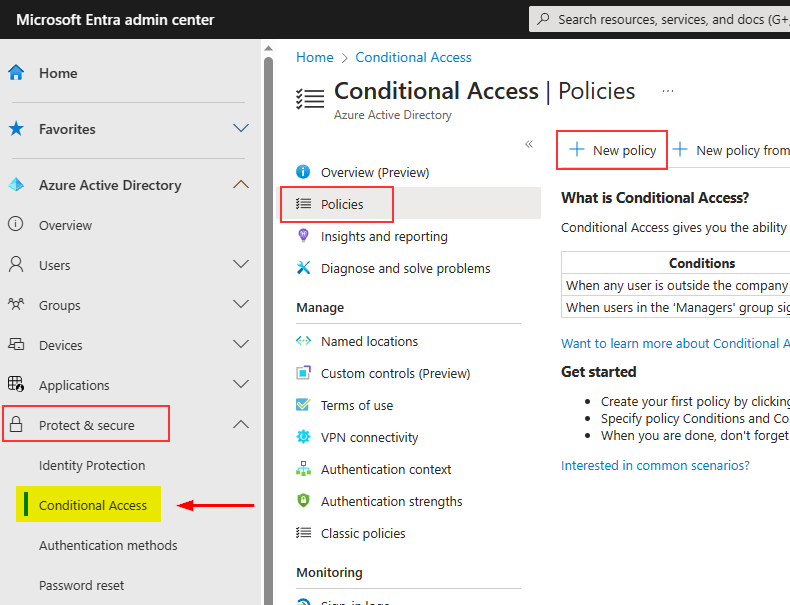
To access the Conditional Access, proceed to the Admin Center and under Protect and Secure will be Conditional Access
Manual Conditional Access
You will find that if you do not have the correct license that that you will get this notification and atvising that Azure PD P2 license is required
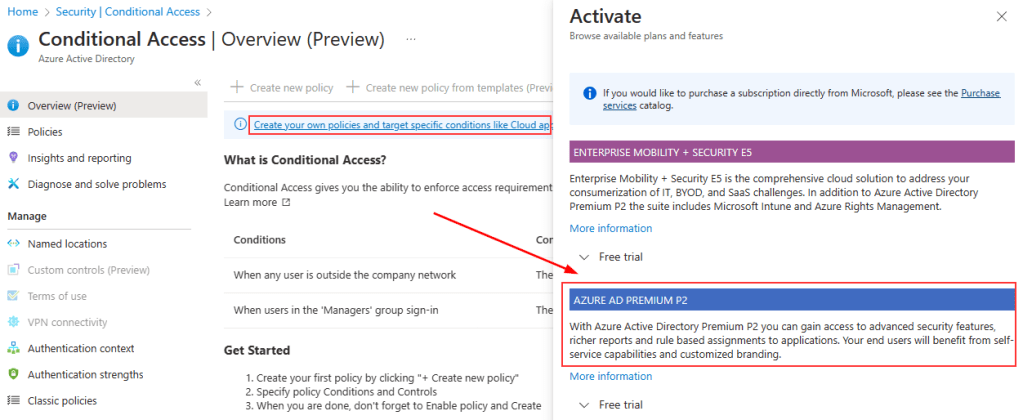
After Adding Azure AD P2 and appyling this to the Admin account in use, you will find that the you can now directly access Conditional Access from Protect & secure. (This option did not appear before adding license).
Form the Policies section you can select a New Policy
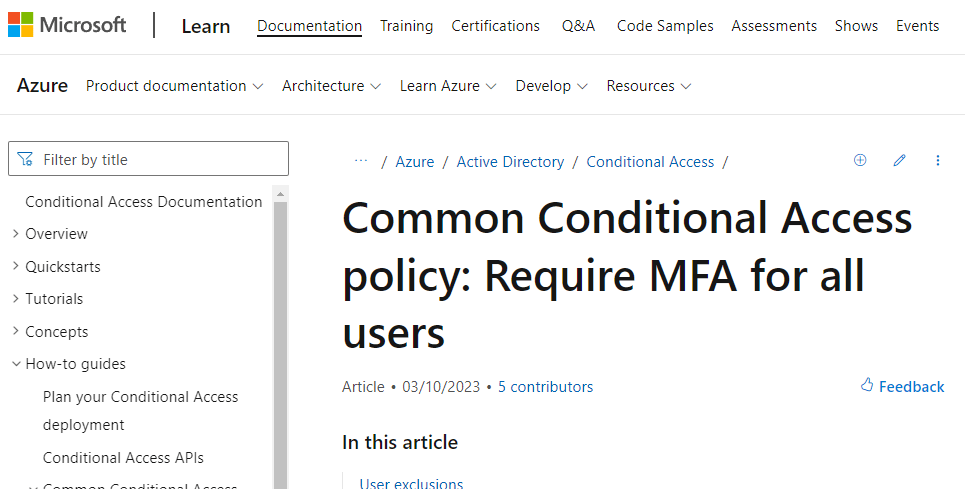
To Enfore MFA for all users, follow this document by Microsoft Here.
Setting MFA Manually
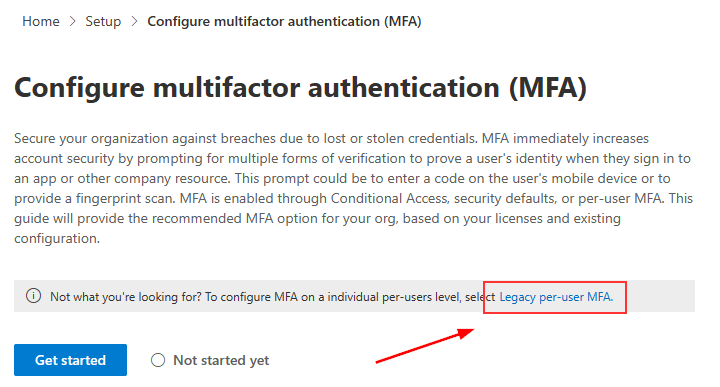
To setup MFA maunally, you will need to select the Legacy per-user MFA:
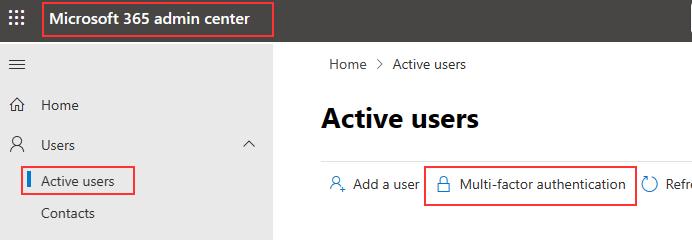
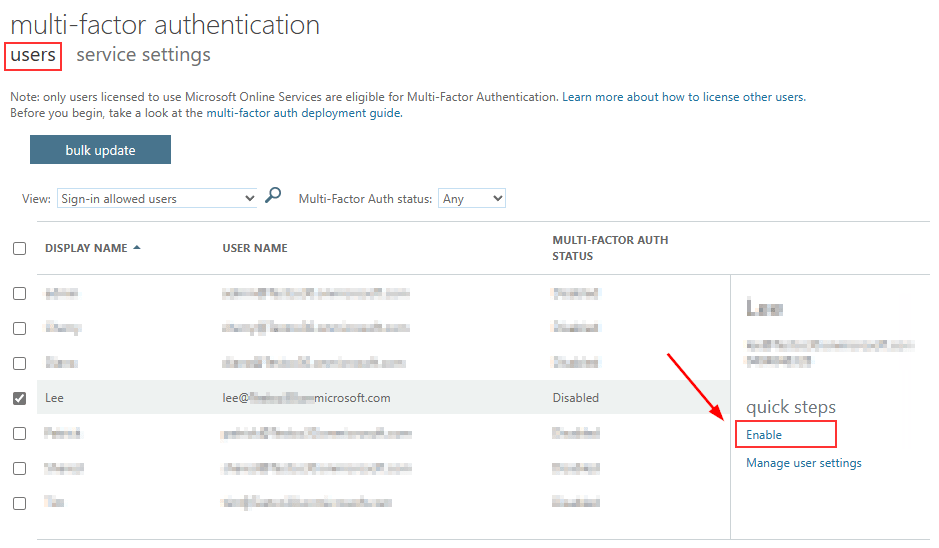
Select a user from the list of users to add apply the MFA too.
Selecting a user and clicking enable will not automatically ensure MFA is active. However, it will guide to register device (Moble) for MFA. Once this process is complete the setting will automatically change to from Enable to Enforce.
*If the user as a device registered, this can changed manually to Enforce
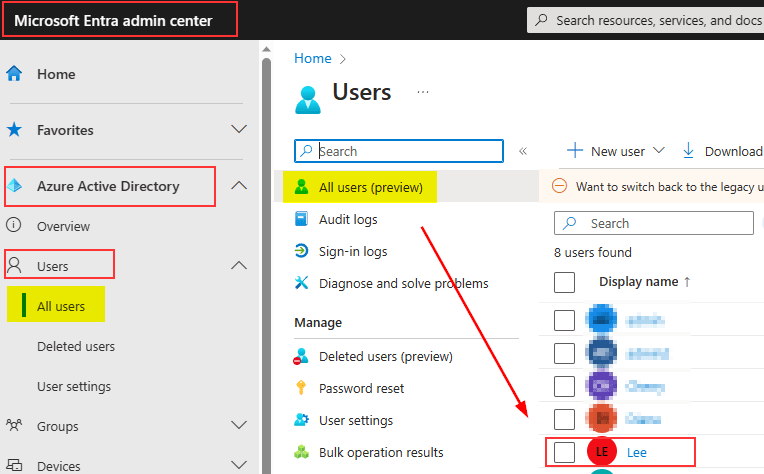
If you plan on setting up MFA for your users to receive an SMS code, you can manually add numbers into each user via the screenshots below:
Select user
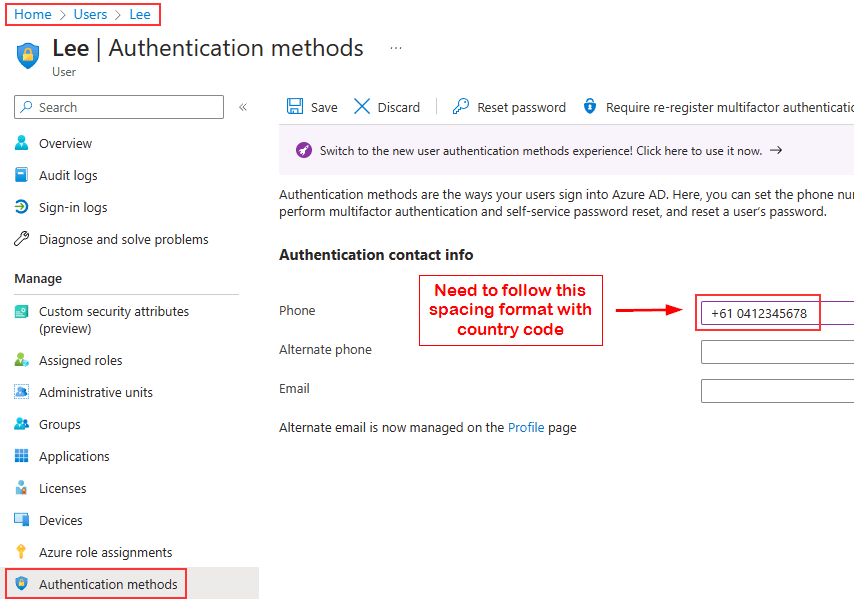
Select Authentication methods and enter the users mobile number.
This method is useful as it requires minimal user interaction. However, it can also create confusion if users are not connectly trained
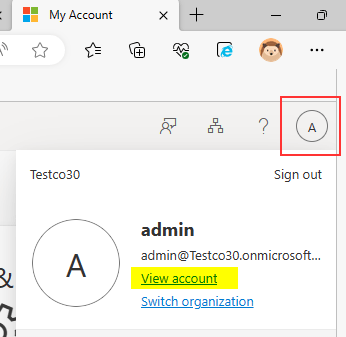
Users are also free to update and change MFA details via this link: https://aka.ms/mfasetup or from the logged in 365 account – click the logo in top right, and select View Account
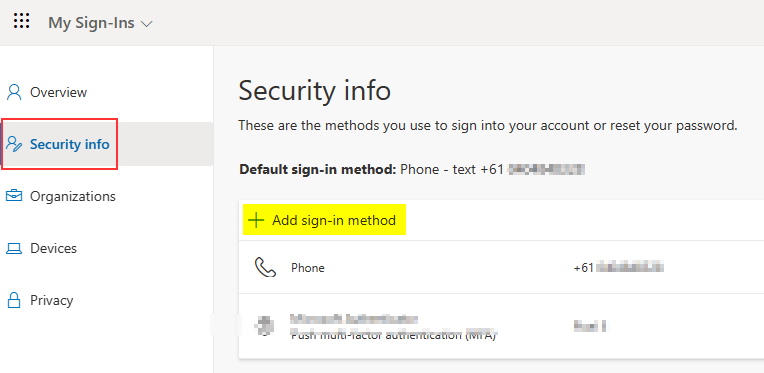
Select Security info and Add sign-in method
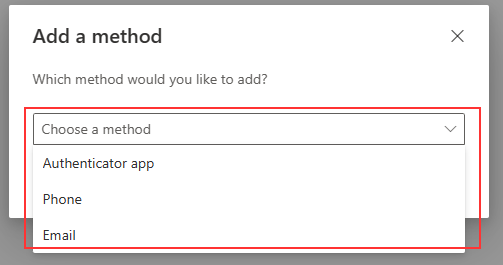
Users will have a selection of options to chose based on what the admin has allowed:
 TechBlog
Leave a comment